You have created your first UiPath workflow, but you’re not sure whether it is executing correctly. How can you quickly verify that a specific step has run without using complex debugging steps
Display a confirmation message with a pop up when the workflow reaches a specific step.
Input
User_Name = "My Automation Time"Expected Output
My Automation TimeA message will be appears on the screen with output results whatever value stored in the Variable.
Solution
Message Box Activity
Use the Message Box activity to display information during workflow execution. It’s one of the easiest ways to verify your automation while learning UiPath.
Dependencies
UiPath.System.Activities
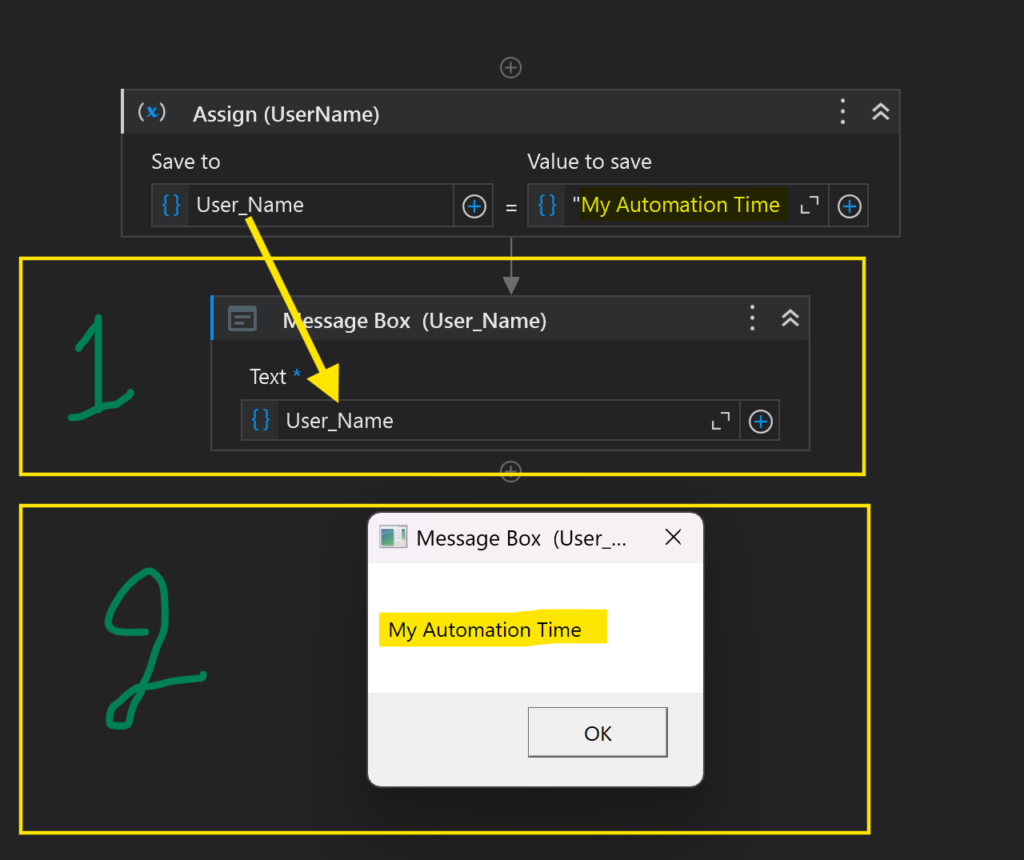
- Activity : Message Box Activity.
- Output : The system shows the result in a pop-up message box.
Logo Message Activity
Use the Log Message activity to display information during workflow execution. It’s one of the easiest ways to verify your automation while learning UiPath.
Dependencies
UiPath.System.Activities
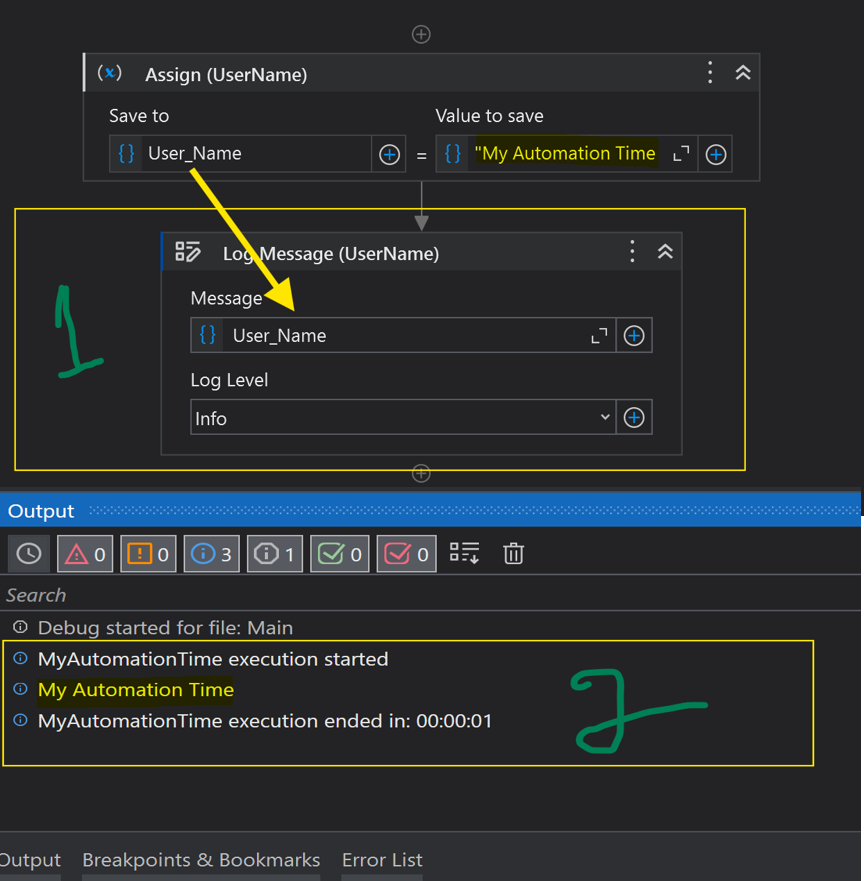
- Activity : Log Message Activity.
- Output : The system shows the result in a Output panel.
Write Line Activity
Use the Write Line activity to display information during workflow execution. It’s one of the easiest ways to verify your automation while learning UiPath.
Dependencies
NA
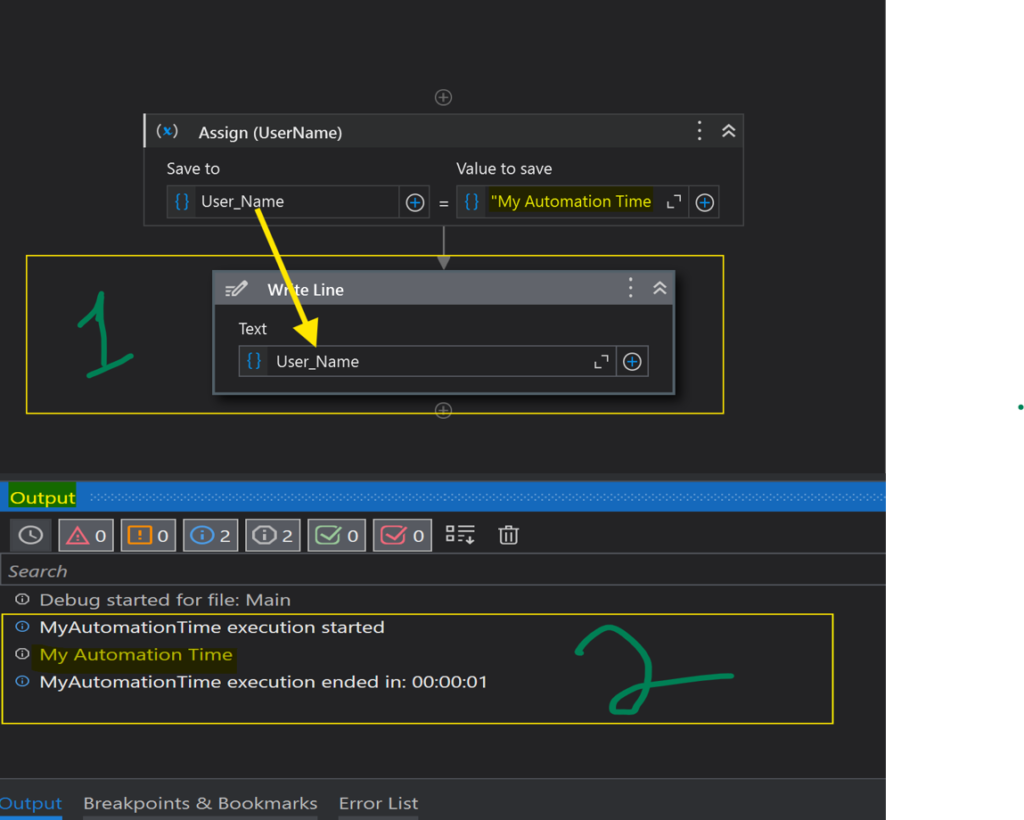
- Activity : Write Line Activity.
- Output : The system shows the result in Output panel.
⚠️ Common Errors
- ❌ Variable is not initialized.
- ❌ Message Box/log message/write line placed inside the wrong sequence.
- ❌ Using the wrong variable name.
Message Box vs Write Line vs Log Message
| Activity | Interrupts Execution? | Saved to Logs? | Best Use Case |
|---|---|---|---|
| Message Box | ✅ | ❌ | Learning, attended automation |
| Write Line | ❌ | ❌ | Quick dev-time checks |
| Log Message | ❌ | ✅ | Production, Orchestrator monitoring |
💡 Best Practices While using This Activities
- Use Message Box only for debugging or attended automation.
- Use Write Line for lightweight checks while building the workflow.
- Use Log Message in production — it’s searchable, filterable, and doesn’t block execution.
- Avoid vague messages like “Done” — always show what actually happened (e.g., variable values, item counts).
This is very to understand the concept and diffrence between the activity.
Well done Mr.Surya Good Job
Thank you so much for your kind words! I’m really glad you found the explanation easy to understand. That’s exactly what I aim for—breaking down UiPath concepts into simple, practical examples. More beginner-friendly content is on the way. Thanks for your support!